Xive for Lumia Stream
Xive chat in Lumia both ways, every Xive event as a Lumia alert for your lights, TTS and overlays, live stats as template variables, and moderation, stream info and raids as actions.
Set up
- 1
Install the plugin
Open the Xive plugin in Lumia and click Install. Or, in Lumia, open Plugins, search Xive and install it from there.
- 2
Sign in
Open the Xive plugin’s settings and click Sign in with Xive. Your browser opens Xive sign-in once and comes back to Lumia by itself.
- 3
Bind your alerts
Xive events now appear as Lumia alerts. Give them lights, sounds, TTS or overlays the same way you do for any other platform.
- 4
Test it
In the Xive studio, use Send test alert. Tests reach Lumia even while you are offline.
Alerts
Viewer Entrance, Xive Surge Progressed (every contribution), Stream Online and Stream Offline start off: turn them on under Alerts → Xive. Ban, timeout and unmute alerts also need Alert on bans and timeouts in the plugin settings, since moderation is usually logged, not announced.
Gift Received has a Gift rarity is… variation (Common to Legendary), Channel Point Redemption matches on the reward’s title, and every Xive event also shows in Lumia’s Event List.
Actions
| Send Chat Message | Posts to your Xive chat as Lumia Stream, as you, or as your channel bot |
|---|---|
| Moderate Viewer | Timeout, ban, unban or unmute a viewer, delete a message, or add or remove a moderator, by Xive handle |
| Update Stream Info | Title and category |
| Start Raid | Send your viewers to another live Xive channel |
| Complete or Reject Redemption | Mark a channel point redemption done, or reject it and refund the points |
| Create Clip | Clip the last 5–60 seconds of your stream (30 by default), credited to you or a chatter |
| Get Channel Clip | A random top clip, the most viewed or the latest from any Xive channel, to play in a shoutout |
| Sign In / Sign Out | Connect or disconnect your Xive account |
| Poll Now / Reconnect | Fetch events now, or reopen the realtime connection |
Variables
Pick them from Lumia’s variable picker (under Xive) in any alert text, overlay or chatbot reply. They update as your stream runs.
Clips
Clip Created fires for every clip made on your channel — from the website, Creator Studio, OBS, Lumia or Streamer.bot. Clips made on the website or in Creator Studio are announced once the clip editor is done, with their final title and trim (up to 45 seconds later, set by Wait for website clips); the rest fire straight away. Who may clip is set in Creator Studio → VODs & Clips → Stream clips.
- A !clip command. Make a chat command !clip with the Create Clip action and put {{username}} in Credit to, so the chatter who typed it gets the credit. Add Send Chat Message: Clipped! {{xive_last_clip_url}}
- Shoutout with a clip. On a mods-only !so command, run Get Channel Clip with Channel {{message}}. When {{xive_shoutout_clip_found}} is true, play {{xive_shoutout_clip_url}} in an overlay video layer for {{xive_shoutout_clip_duration}} seconds.
Xive overlays for Lumia
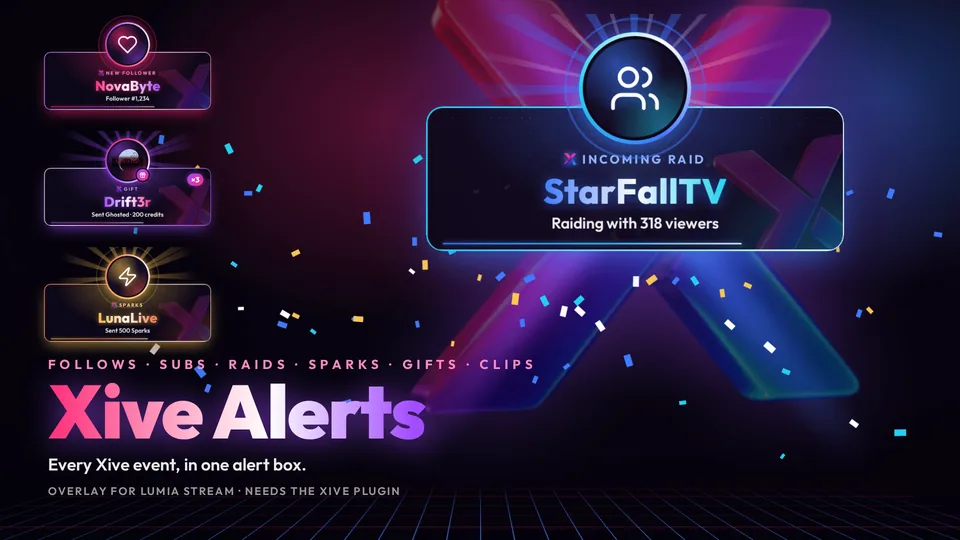
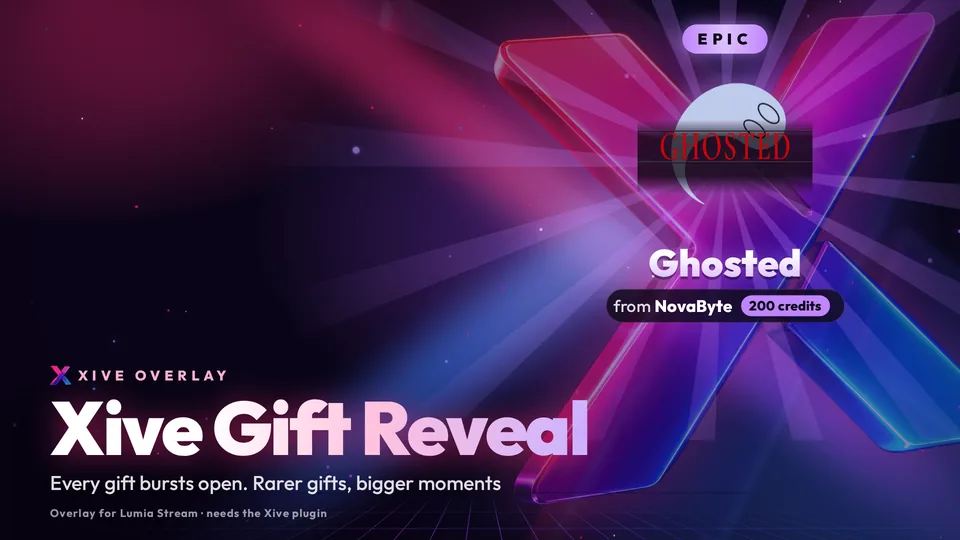
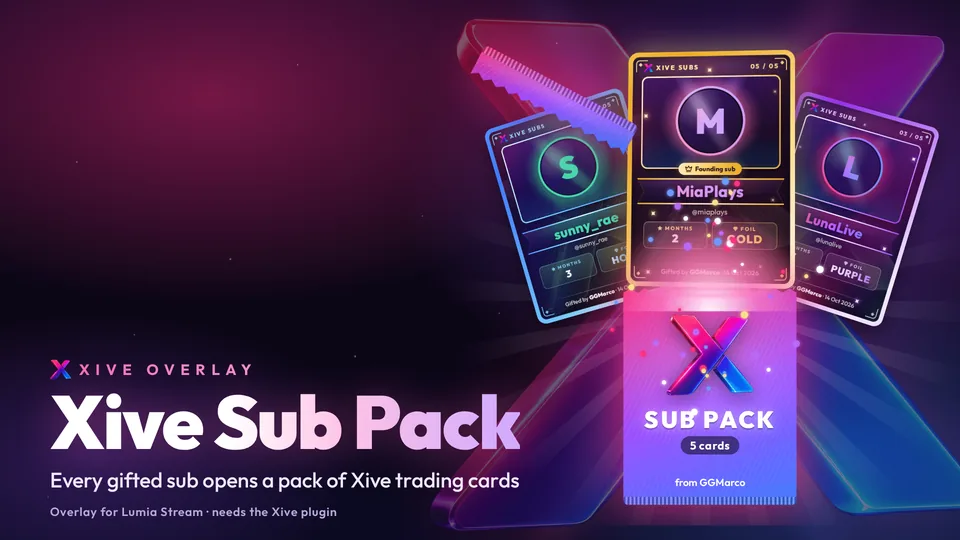
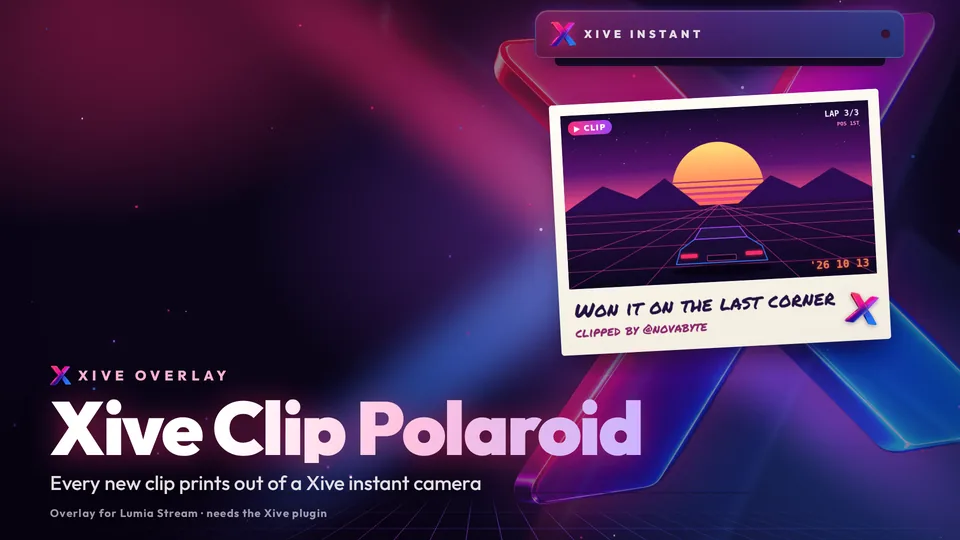
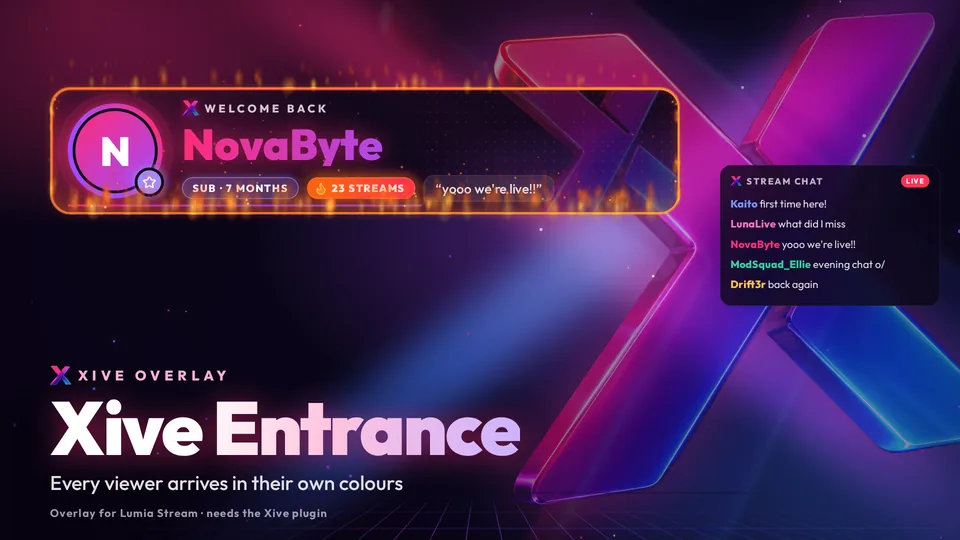
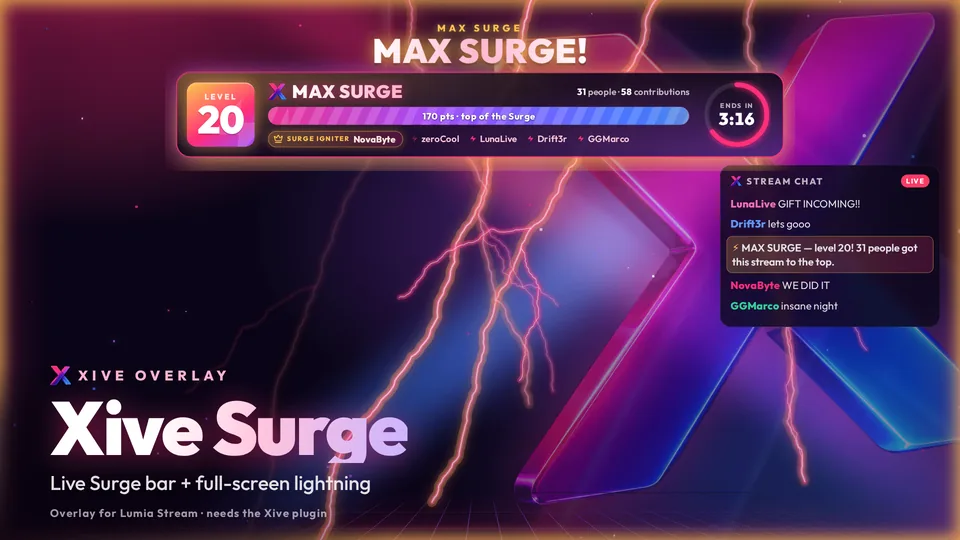
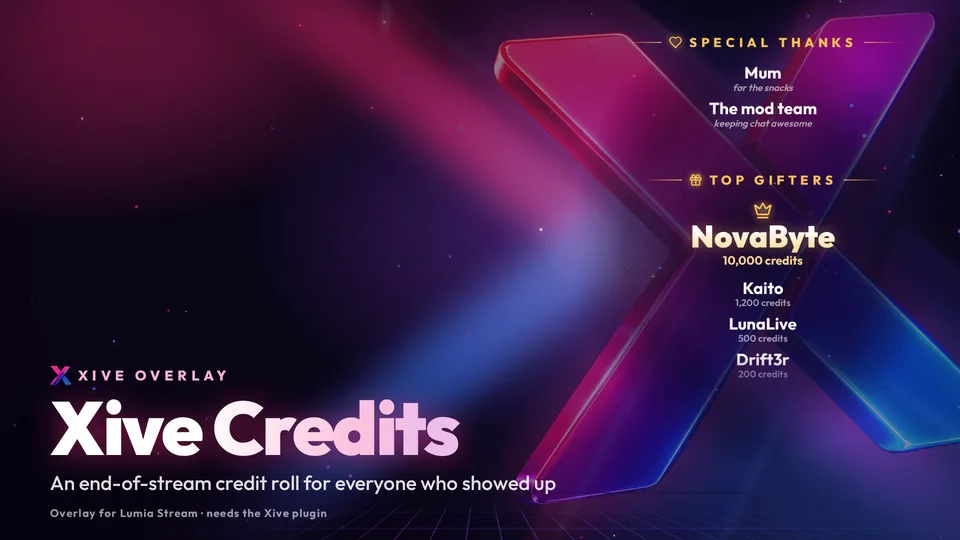
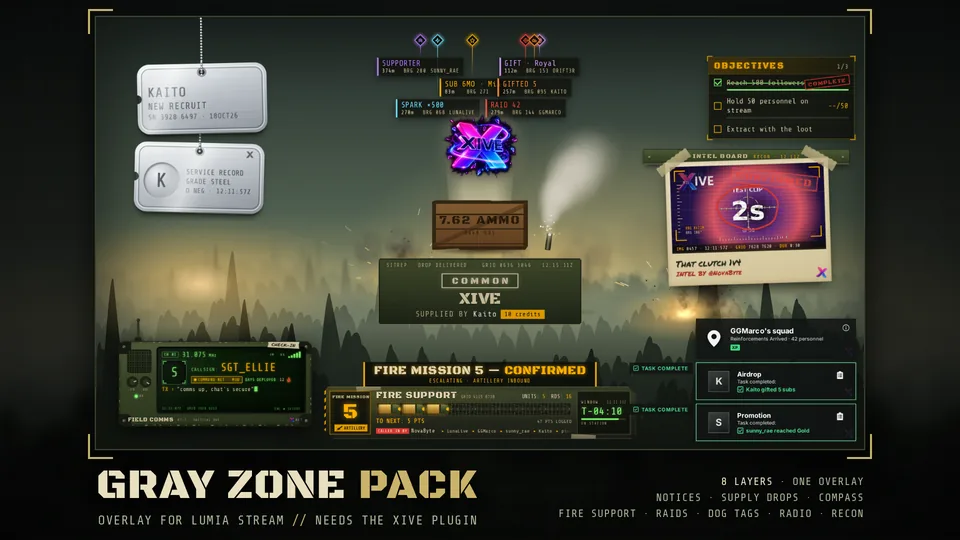
Made by Xive for the Xive plugin. Add one to a Lumia overlay and it plays your Xive events: no files to host, and each has a test button. They need version 1.3.0 or later, and they share the stage, so a gift, gifted sub or clip never shows twice.
Good to know
- Xive chat is always in Lumia, with badges and emotes, even while you’re offline, so Lumia chat commands and chatbot rules see it.
- Send as on Send Chat Message, and Send chatbot messages as in the settings, post as Lumia Stream (Lumia’s name and icon, with a BOT badge), as you, or as your channel’s built-in bot (name and avatar in Creator Studio). Lumia Stream is the default.
- Events arrive over a realtime connection, with a backup check every 10 seconds so nothing is missed if it drops. Going live and ending are picked up by themselves: no restart between streams.
- credits and surge_state hold the whole broadcast and the current Surge as JSON, for the Xive Credits and Xive Surge overlays.